Tools & Resources
Free Design Tools That Don't Look Free
Free design tools are enough for most solo work. Use the right one for layouts, edits, palettes, fonts, and images.
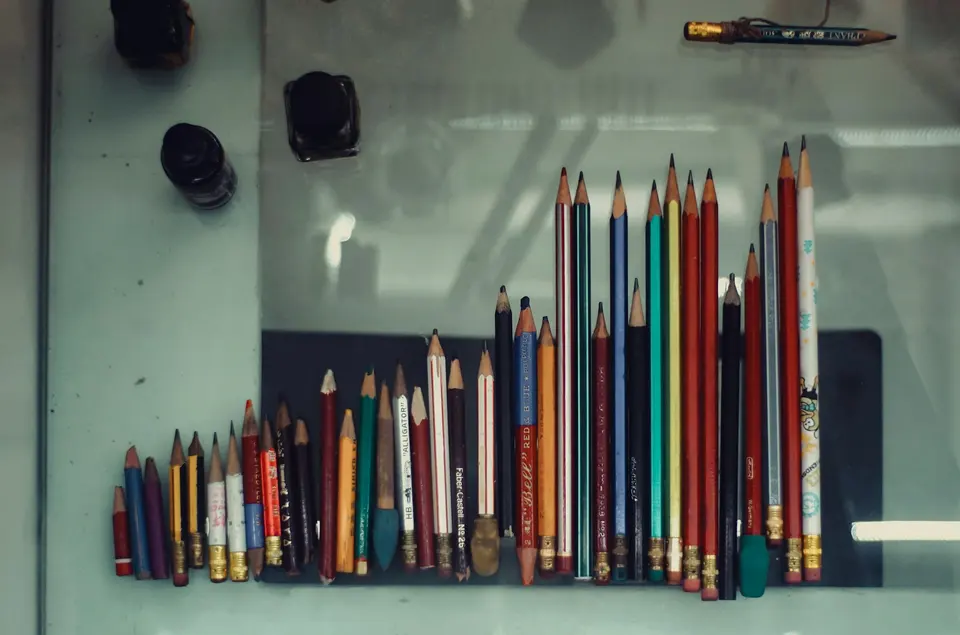
You do not need a full design subscription to make one good graphic.
You need the right tool for the job.
That sounds obvious until you watch someone open a giant professional app to crop a blog image, then spend 40 minutes remembering where the export button lives.
Free design tools are good now.
Not “good for free.”
Good.
The trick is not using one tool for everything. That is how you end up fighting software instead of making the thing.
Use the right tool, do the job, leave.
Use Figma for layouts and reusable assets
Figma is the best free starting point for clean layouts, landing-page mockups, social templates, thumbnails, simple graphics, and design systems.
The Starter plan is free. Figma’s pricing FAQ says you get unlimited files in Drafts and can collaborate on up to three team files on the free plan.
That is enough for many solo creators and freelancers.
Use it for:
- blog graphics
- landing page mockups
- social templates
- simple brand systems
- reusable design components
- client concept boards
Do this now: Make one file called Reusable Assets.
Put your colors, fonts, logos, buttons, thumbnail templates, and common layouts there.
Do not start from blank every time like a person allergic to memory.
If you are building a simple public presence, pair this with building a portfolio website cheaply and quickly.
Use Photopea for actual image editing
Photopea is the browser tool I reach for when the job is more Photoshop-shaped.
Crop. Resize. Layers. PSD files. Simple cleanup. Format conversion. Web images. Quick edits.
Photopea says files run locally on your device and do not leave your computer for normal editing. Its terms also say the editor can be used for free, with premium mainly supporting the product and removing ads.
That matters.
It means you can handle many editing jobs without installing a giant app.
Use it for:
- resizing featured images
- editing PSD files
- quick product mockups
- background cleanup
- export format changes
- small web graphics
Skip it if: you need a full production workflow every day. If design is your core job, pay for the tool that actually makes you faster.
Free is not noble if it costs you four hours.
Use Canva when speed matters more than control
Canva is not embarrassing.
Using Canva badly is embarrassing.
Different issue.
Canva’s free plan includes the drag-and-drop editor, many design types, templates, media, limited brand-kit features, storage, and some AI usage. The exact limits change, so check the pricing page before building a whole workflow around a limit.
Use it for:
- quick social posts
- simple PDFs
- promo images
- thumbnails
- presentation drafts
- non-designer marketing material
The move: Pick one template family and customize it.
Do not use a different aesthetic every Tuesday.
That is how your brand starts looking like it has multiple roommates.
Use Penpot when open source matters
Penpot is the serious open-source design option.
It is especially useful if you want a Figma-like workflow without locking everything into one company’s universe. Its free Professional plan currently includes no file limits, unlimited teams, plugins, and open-source ownership, with limits around team size, storage, version history, and recovery.
That makes it a real option, not a symbolic one.
Use it if:
- you care about open source
- you want a browser-based interface design tool
- your team wants fewer vendor-lock-in headaches
- you hit Figma’s free-team limits
Skip it if: everyone you work with already uses Figma and handoff matters more than ideology.
Do not make collaboration worse to feel pure.
Use Google Fonts before buying fonts
Google Fonts is still the sensible first stop.
Its FAQ says the fonts are open source, free, and can be used commercially.
That does not mean every font looks good in every project.
It means you have enough raw material to stop pretending typography requires a font budget on day one.
Do this now: Pick two fonts.
One for headings.
One for body text.
Stop there.
More fonts usually means less design taste, not more personality.
Use Coolors for palettes when your eyes start lying
Coolors is for choosing colors without opening a philosophical debate with yourself.
Generate palettes. Lock colors you like. Adjust the rest. Check contrast. Move on.
The move: Build a five-color palette:
- background
- text
- accent
- soft accent
- warning or contrast color
Save the hex codes somewhere boring and visible.
Then reuse them.
Consistency beats fresh chaos.
Use Unsplash carefully for photography
Unsplash images can be used for free for commercial and non-commercial purposes, with attribution appreciated but not required.
That is useful.
It is also dangerous if you pick the same generic desk photo as everyone else.
Use it for:
- blog feature images
- mood references
- simple backgrounds
- presentation visuals
Avoid:
- fake startup handshake photos
- random laptop-with-coffee imagery
- images where a recognizable person or brand creates legal weirdness
- anything that makes your post look like it came from a corporate wellness PDF
Credit photographers anyway.
It costs nothing and makes the internet slightly less extractive.
The free design stack
Use this:
- Layouts: Figma or Penpot
- Image edits: Photopea
- Fast marketing graphics: Canva
- Colors: Coolors
- Fonts: Google Fonts
- Photos: Unsplash
That stack costs nothing to start.
It will not make you a designer.
Good tools do not replace taste.
But they remove the dumb excuse that you cannot make decent visuals until you pay for a giant software bundle.
If you are building a broader tool stack, read cheap tools that replaced expensive ones and free tools for remote workers. Same rule: start free, upgrade when the work proves the need.
Advertisement